모바일 멀티 터치 크기 조절
객체를 두 손가락을 이용하여 객체의 크기를 조절합니다.
두 손가락의 거리를 늘리면 객체의 크기를 늘리고 좁히면 객체의 크기를 줄입니다.
유니티3D 에디터에서
스크립트 작성
프로젝트창에서 TouchScale.cs스크립트를 생성합니다.
TouchScale.cs 스크립트를 열어서 다음과 같이 작성합니다.
1
2
3
4
5
6
7
8
9
10
11
12
13
14
15
16
17
18
19
20
21
22
23
24
25
26
27
28
29
30
31
32
33
34
35
36
37
38
39
40
using System.Collections;
using System.Collections.Generic;
using UnityEngine;

public class TouchScale : MonoBehaviour
{
    private GameObject Obj;

    // Update is called once per frame
    void Update()
    {
        if (Input.touchCount == 2)
        {
            Touch touch0 = Input.GetTouch(0);
            Touch touch1 = Input.GetTouch(1);

            Vector2 touch0PrevPos = touch0.position - touch0.deltaPosition;
            Vector2 touch1PrevPos = touch1.position - touch1.deltaPosition;

            float prevTouchDelta = (touch0PrevPos - touch1PrevPos).magnitude;
            float touchDelta = (touch0.position - touch1.position).magnitude;

            float zoomDelta = prevTouchDelta - touchDelta;

            Ray ray = Camera.main.ScreenPointToRay(touch0.position);
            Ray ray2 = Camera.main.ScreenPointToRay(touch1.position);
            RaycastHit hit;

            if (Physics.Raycast(ray, out hit))
            {
                if (hit.transform.tag == "Props")
                {
                    Obj = hit.transform.gameObject;
                }
                Obj.transform.localScale = new Vector3(Obj.transform.localScale.x + zoomDelta * -0.01f, Obj.transform.localScale.y + zoomDelta * -0.01f, Obj.transform.localScale.z + zoomDelta * -0.01f);
            }

        }
    }
}
씬 수정
계층 구조창에서 Cube오브젝트를 생성하여 화면 중앙에 보일 수 있도록 위치를 조정합니다.
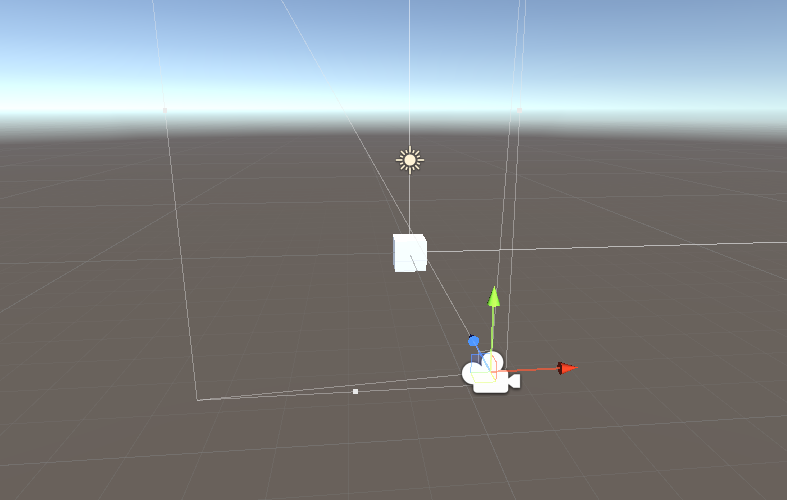
<01. 오브젝트 생성 1>
계층구조창에 빈 게임 오브젝트를 생성하고 이름을 TouchManager로 변경합니다.
TouchManager 오브젝트에 TouchScale.cs 스크립트를 연결시킵니다.
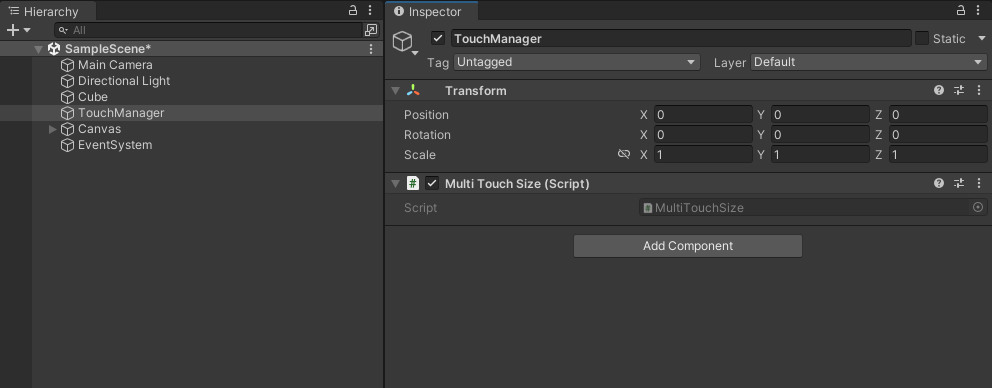
<02. 오브젝트 생성 2>
테스트
모바일 디바이스에 빌드를 하여 테스트를 해 봅니다.
결과물
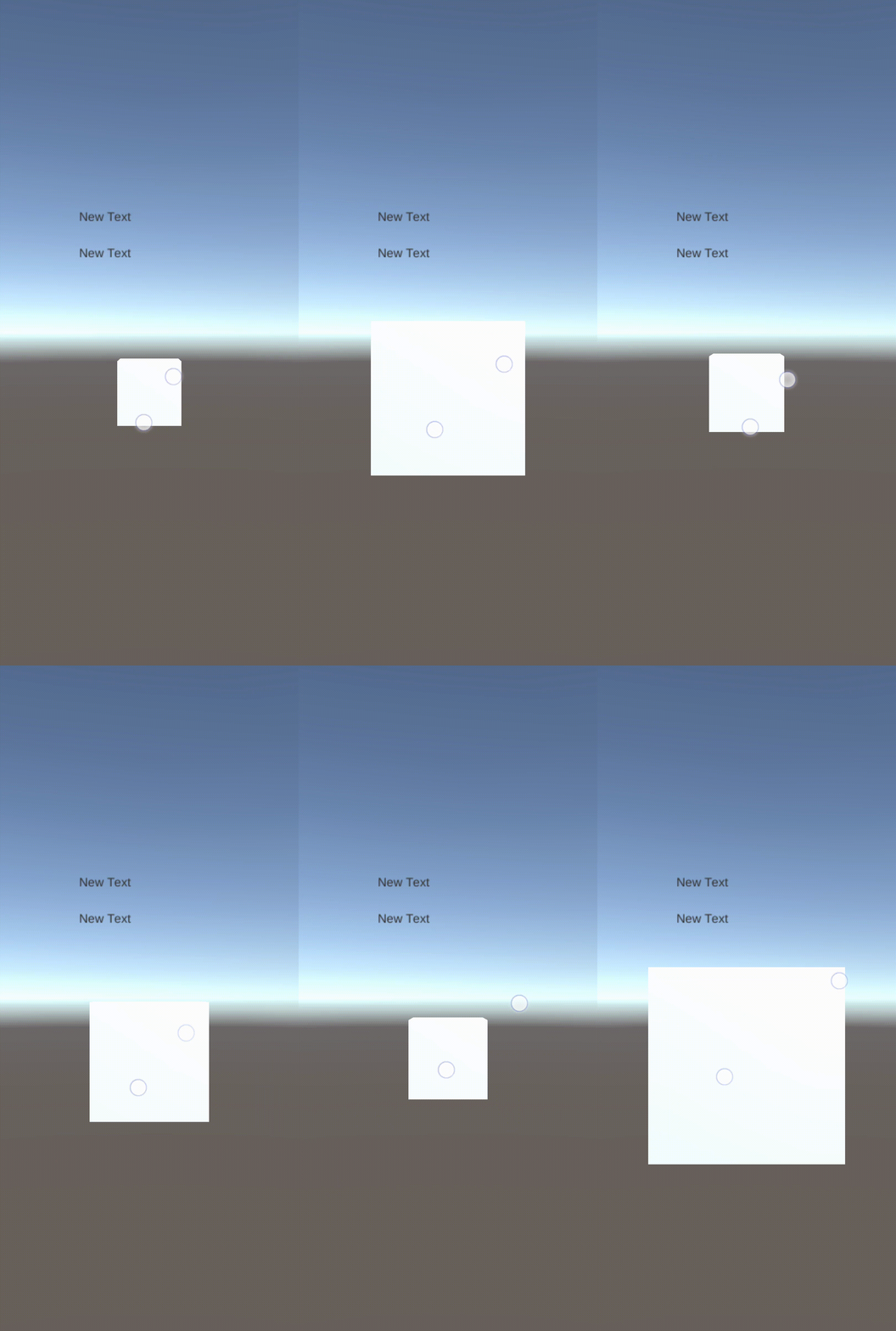
<03. >